As the Organizer, you can add participants to your sign up any time, whether you're entering someone brand new or pulling them from a saved group. This article walks you through both options, plus how to assign items along the way.
- Log in to your account and select the sign up you want to edit from the Created tab on your account Sign Ups page.
- Click Add/Edit/Delete People from the toolbar at the top of the sign up.
- Click Sign Someone Up. If your sign up uses the RSVP format, click RSVP for Someone instead.
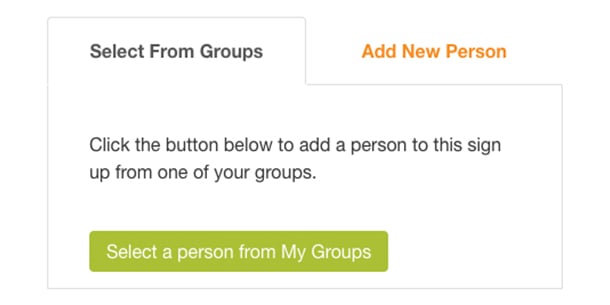
- Choose whether to add someone from a group or add a new person.
.jpg)
Add Someone From a Group
- Click Select a Person from My Groups. A pop-up window opens.
- Choose the group from the drop-down list, then check the box next to the participant's email.
- Click Add Items.
- Select the items you'd like to sign the participant up for, then click Submit & Continue.
Add a New Person
- Click the Add New Person tab and enter the first name, last name, and email address. Leave the email field blank if the person doesn't have one.
- Click Add Items.
- Select the items you'd like to sign the person up for, then click Submit & Continue.
- Review the table listing the item(s) you're signing the participant up for.
- Choose whether to send a confirmation email to the participant.
- Click Save & Finish, or click Save & Add Another Person to add more people to the sign up.
.jpg)
.jpg)